

Your organisation
Your organisation's profile, the people in it, and your own settings.
Everything about your organisation lives under Profile in the sidebar. It has tabs: Organisation, People, Past studies (CROs only), Legal and Materials.
Organisation
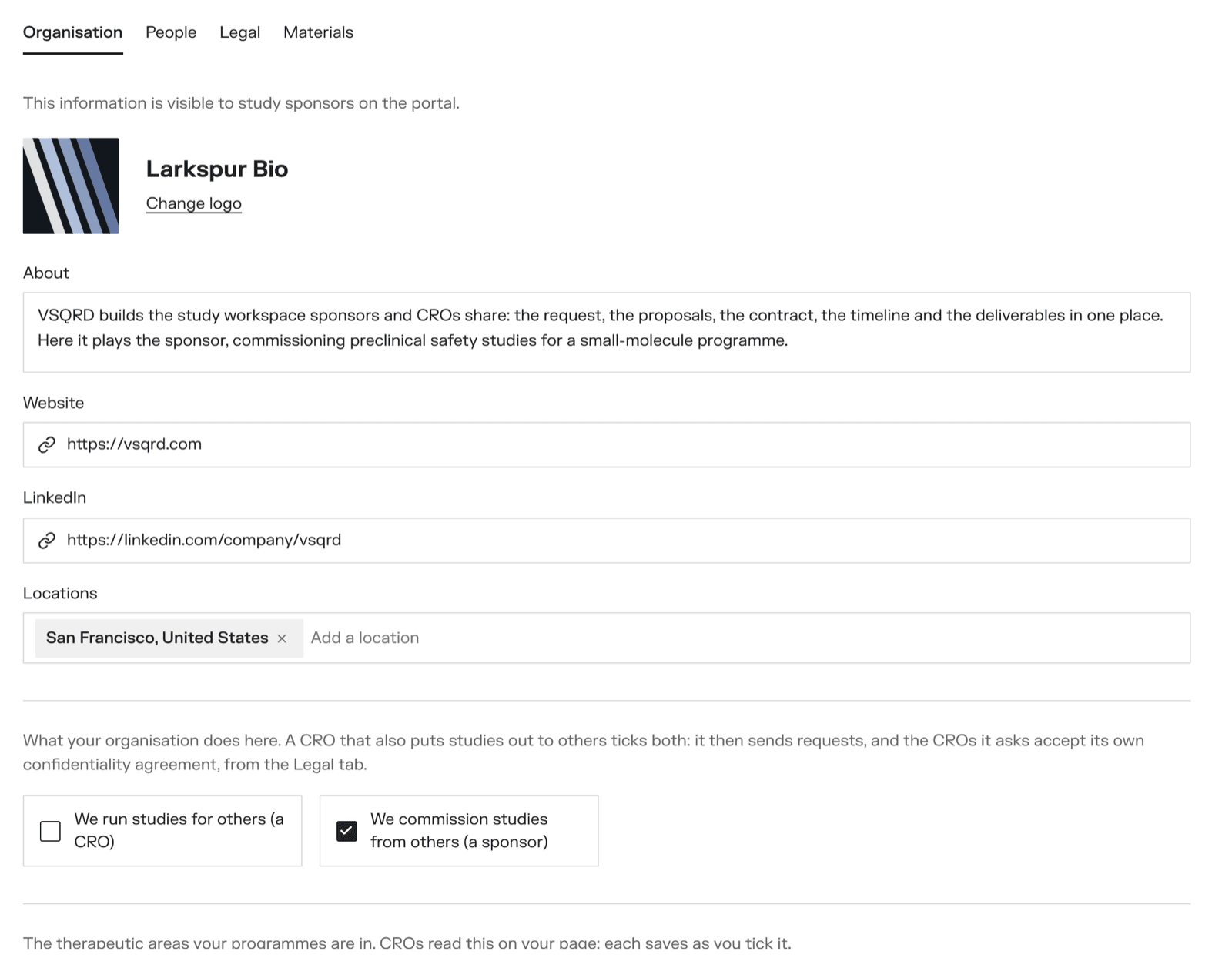
This is your listing — what other organisations read about you. Click a field to change it; it saves as you type.
- Logo, name, About, Website, LinkedIn and Locations
- For a CRO: service categories and designations (GLP, AAALAC, ISO 9001 and so on), and the kinds of study and test systems you run
- For a sponsor: therapeutic areas and modalities
An owner can also change What your organisation does — whether it runs studies, commissions them, or both.
Anything a CRO says about itself is shown to sponsors as the CRO's own claim. The portal does not verify it.
People
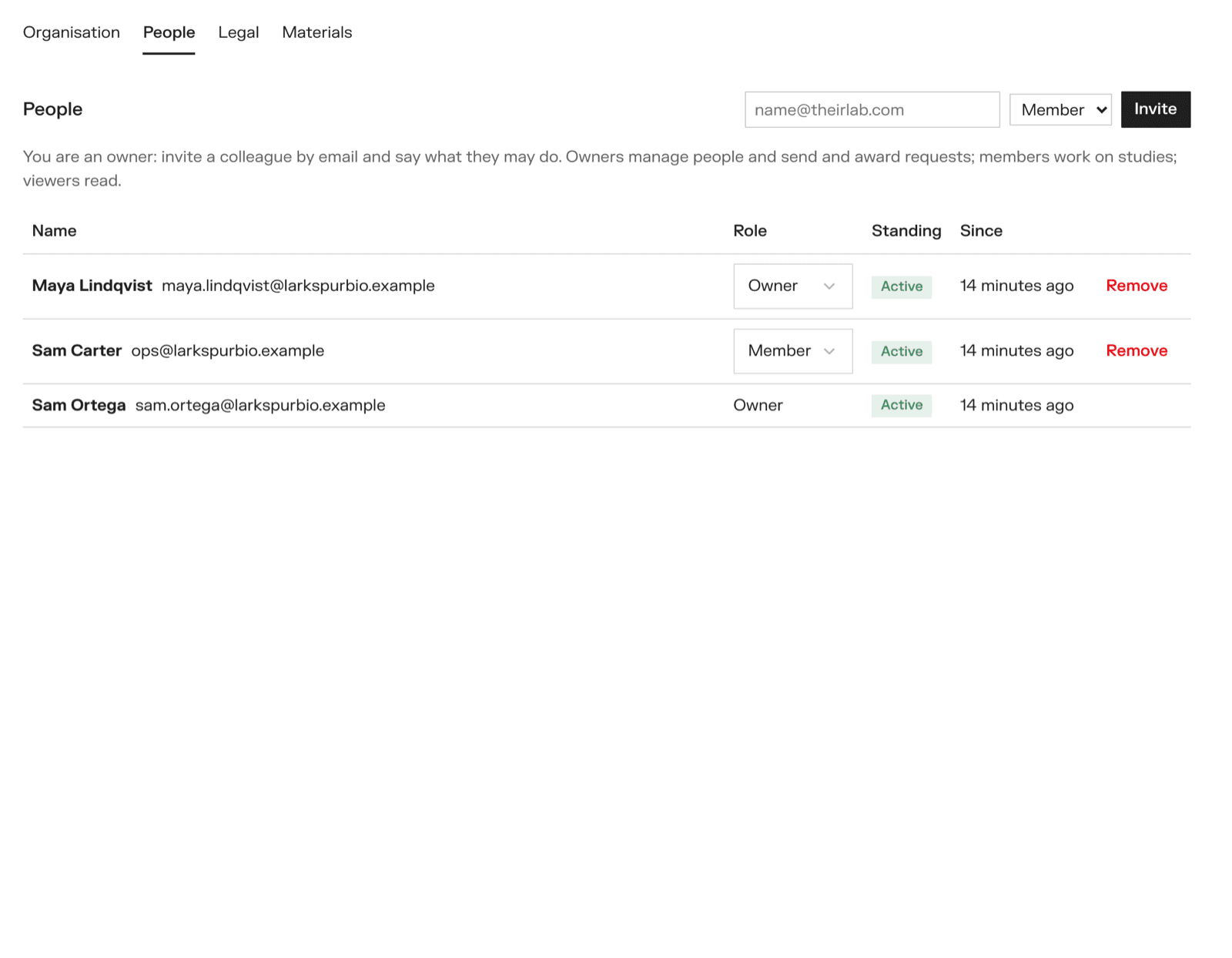
The People tab lists everyone in the organisation, with their role and when they were last seen.
Owners manage this tab:
- Invite — type an email address, choose a role, and click Invite. The person is emailed a link that works for 7 days.
- Change a role — pick owner, member or viewer beside the person.
- Remove — takes the person out. They can be invited again later.
- Revoke — withdraws an invitation that has not been used.
You cannot change your own role or remove yourself. An organisation always keeps one owner, so make someone else an owner first.
See Getting started for what each role may do.
Past studies
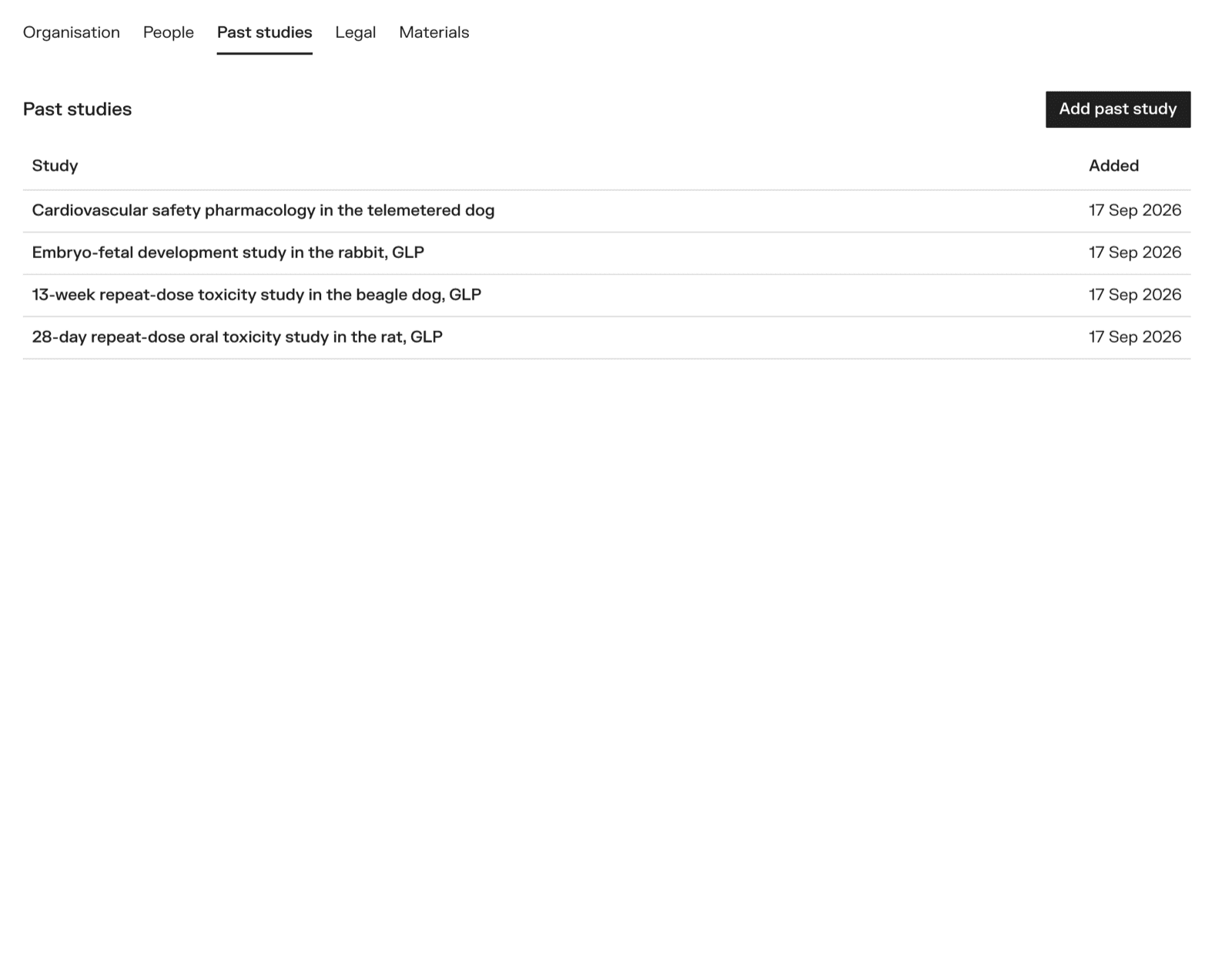
A CRO lists work it has done before joining the portal: Add past study, with a title and a short description. Leave out anything that names a client.
Legal
The Legal tab holds your confidentiality agreements. A sponsor also chooses here how its agreements are made. See Confidentiality agreements.
Materials
Files you want other organisations to see — a capabilities deck, a certificate. Add a file: a PDF or an image, up to 10 MB.
What a sponsor sees of a CRO
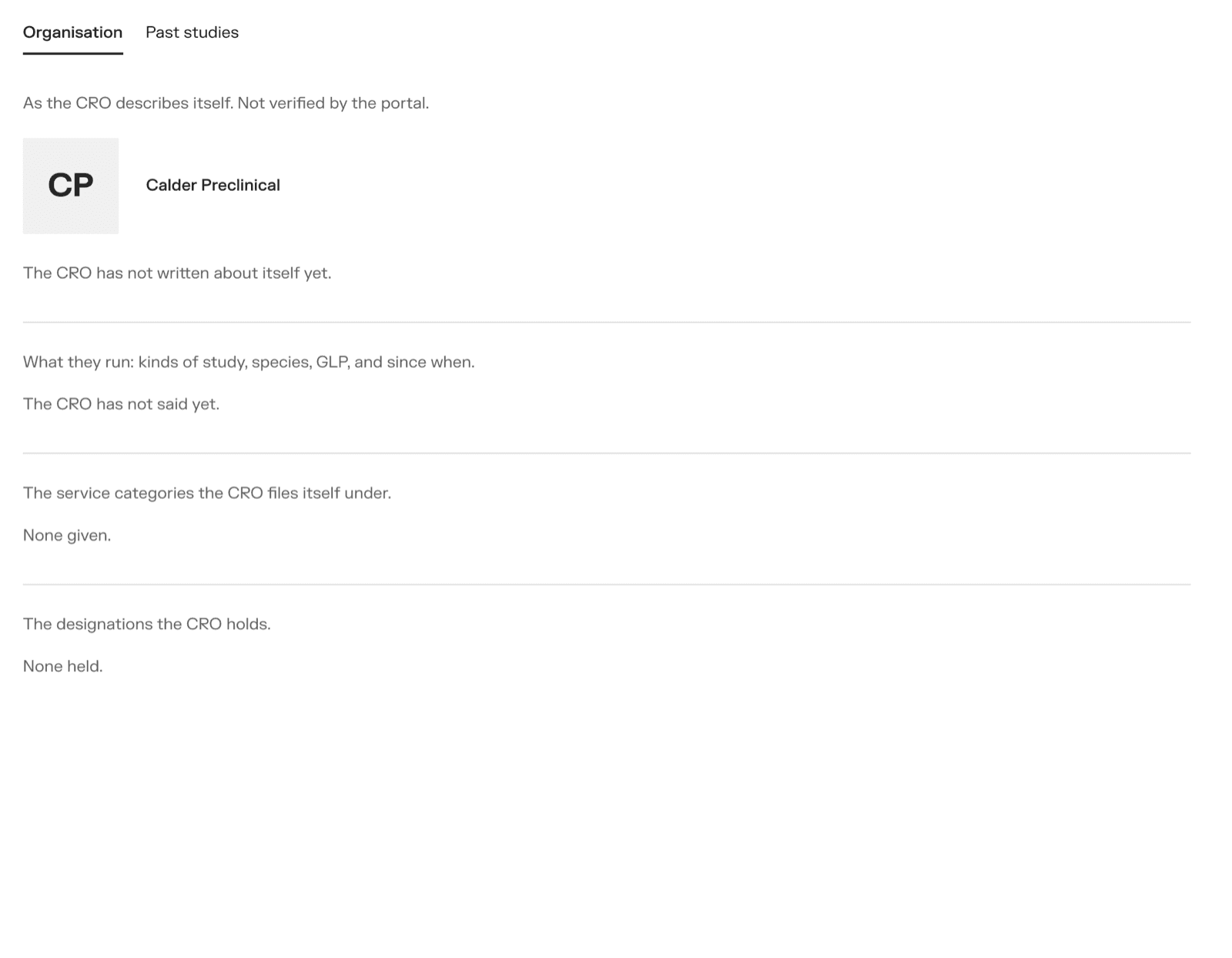
Click a CRO's name on a shortlist or a proposal and you get its page, with the same Organisation, Past studies and Materials tabs, read-only.
Your own settings
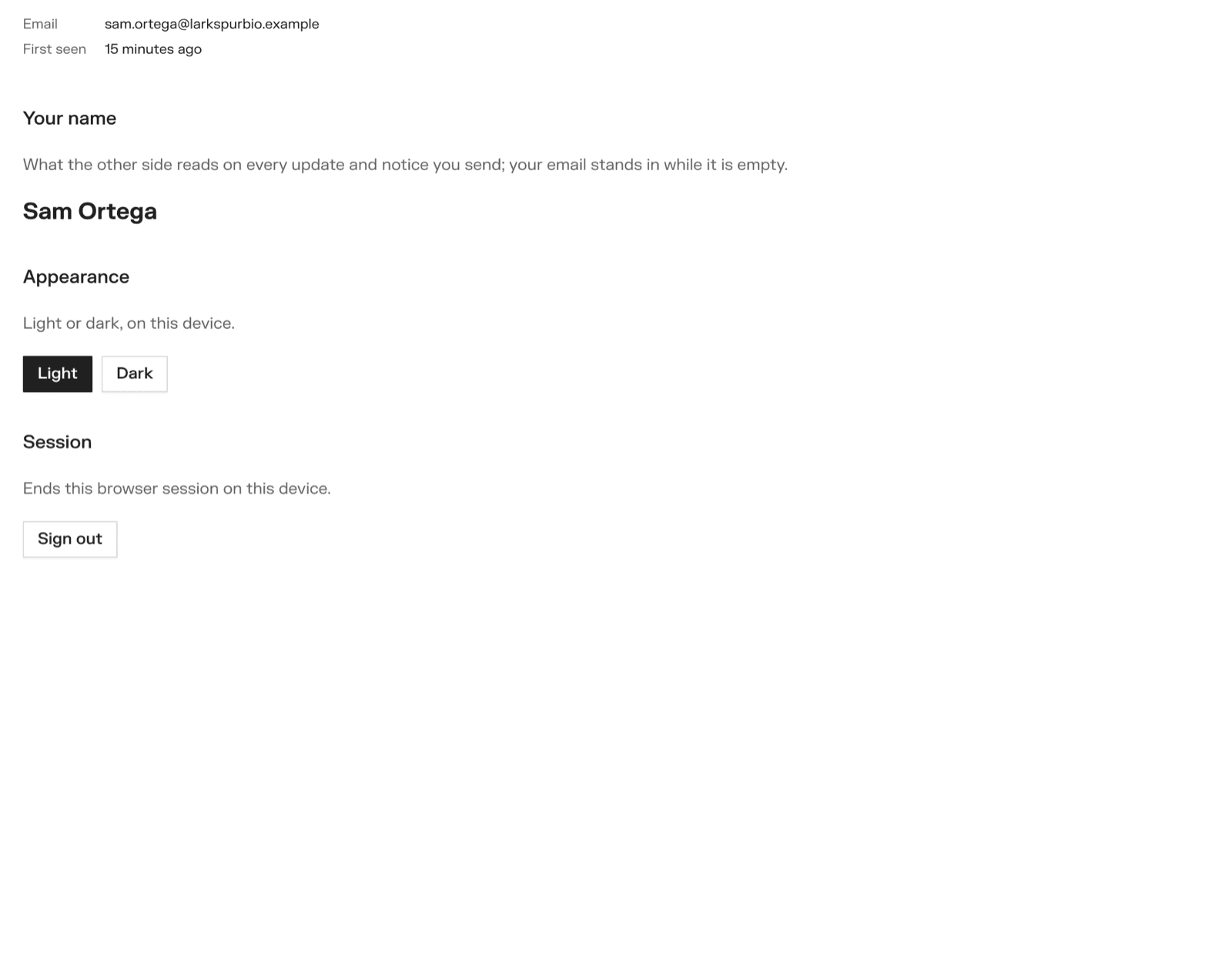
Settings is about you, not the organisation: your name as others see it, light or dark appearance, and Sign out. Even a viewer can change their own name.
Getting started
How you get onto VSQRD Portal, what you are asked on the way in, and where things are once you are there.
Asking CROs for proposals
For sponsors: write a request, put it on the board or send it to CROs you choose, invite from the shortlist, answer questions, compare proposals and award.